
Your Mac. In your hands.
Use your iPhone or iPad as a trackpad, keyboard and remote for your Mac, with controls that adapt to the app you’re using.

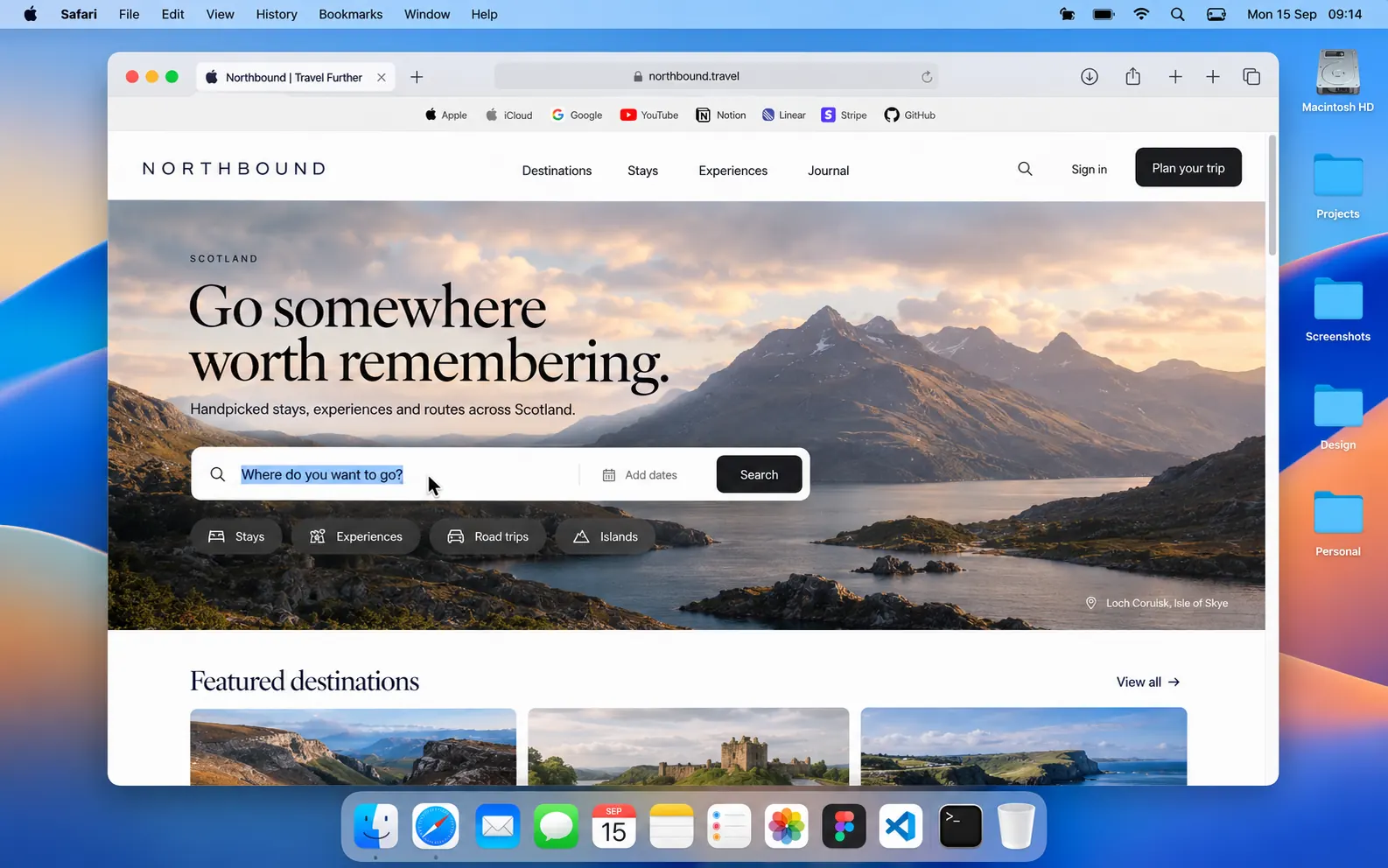


A trackpad that feels like your Mac’s.
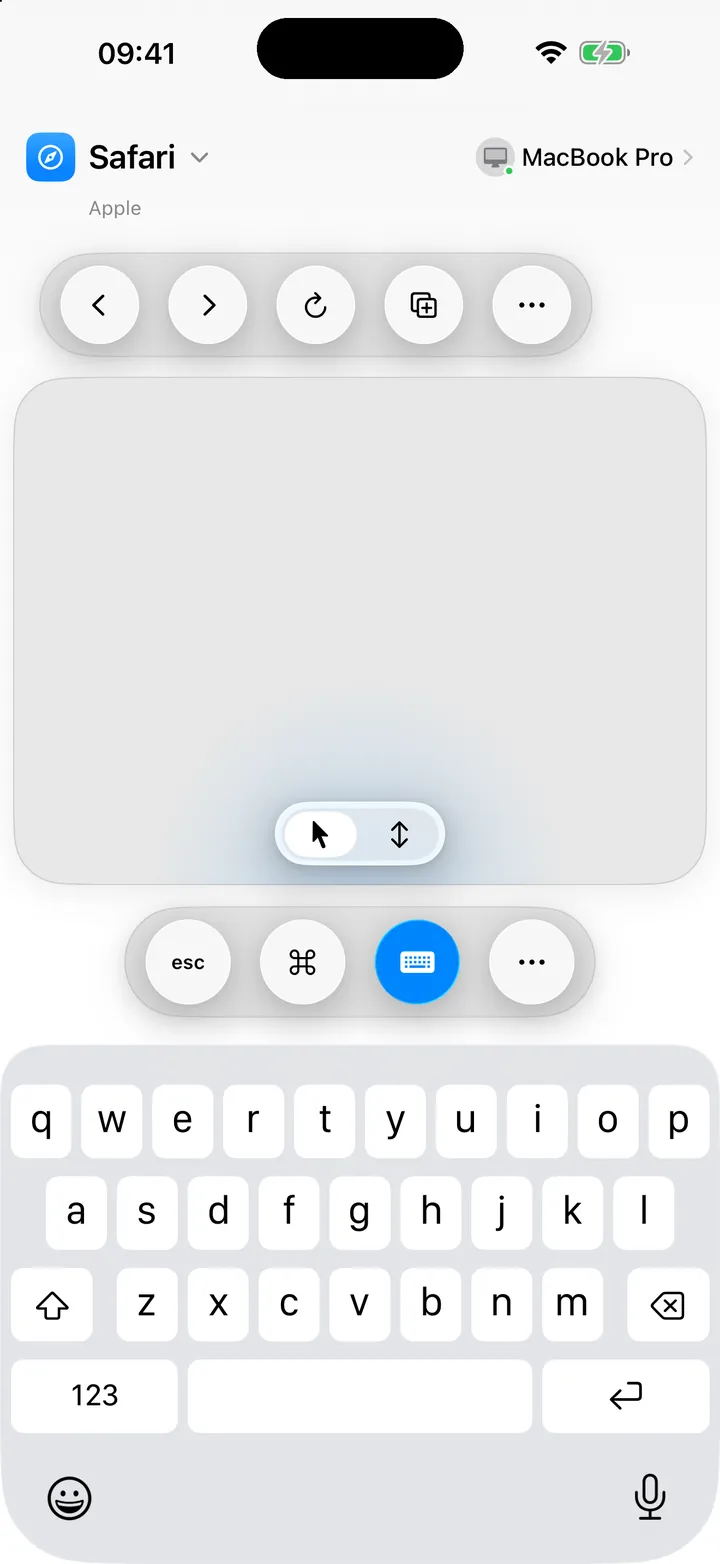
Point, click, drag and scroll from the couch, across the room or right beside your Mac. Pointer speed is tuned to match a MacBook trackpad.

-
Tap, drag and scroll
Tap to click, press and drag to move windows, and two fingers to scroll. Right-click and Mission Control swipes too.
-
Type with your own keyboard
Autocorrect, dictation and emoji, just like typing on your iPhone or iPad.
-
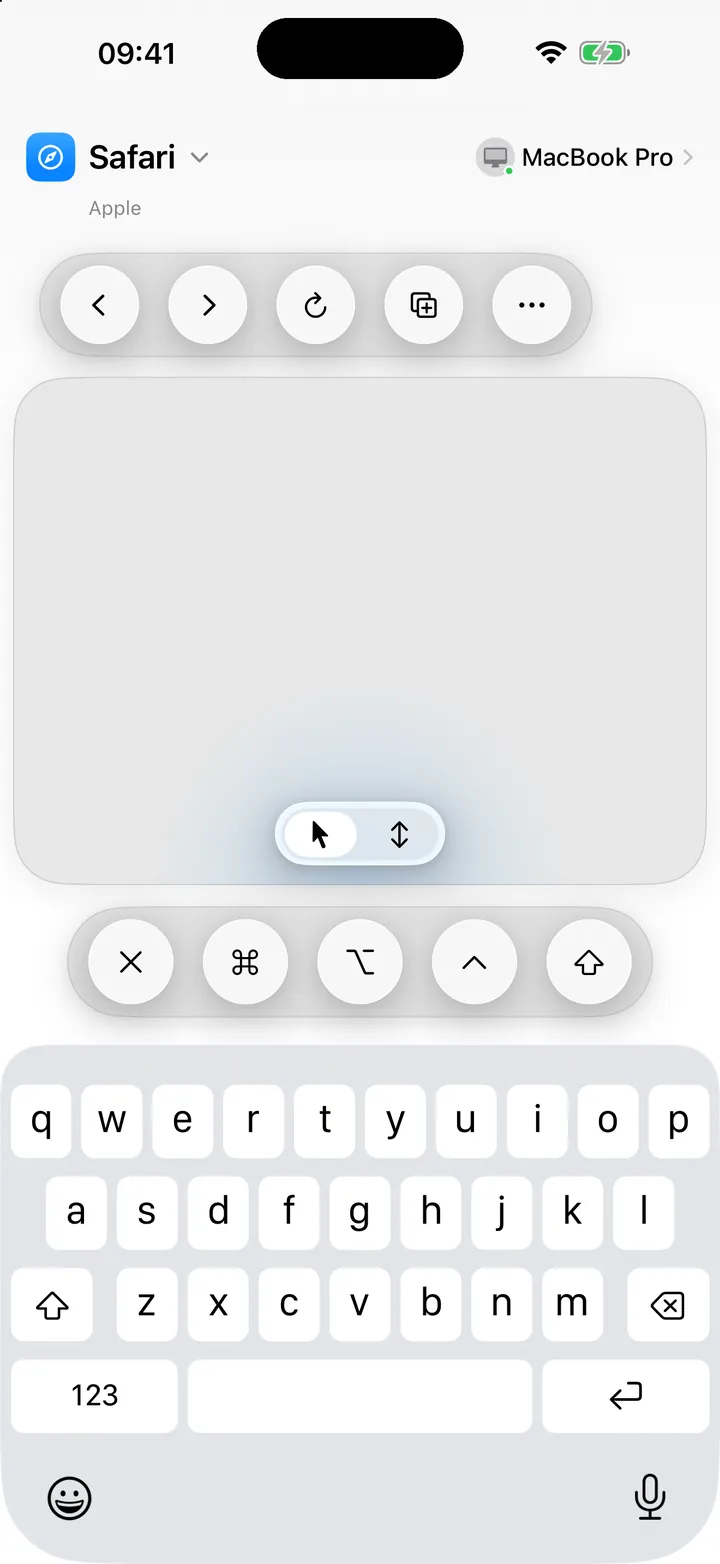
Every Mac key you need
Command, Option, Control and Shift, the arrow keys and Escape, always one tap away.
Controls that follow what you’re doing.
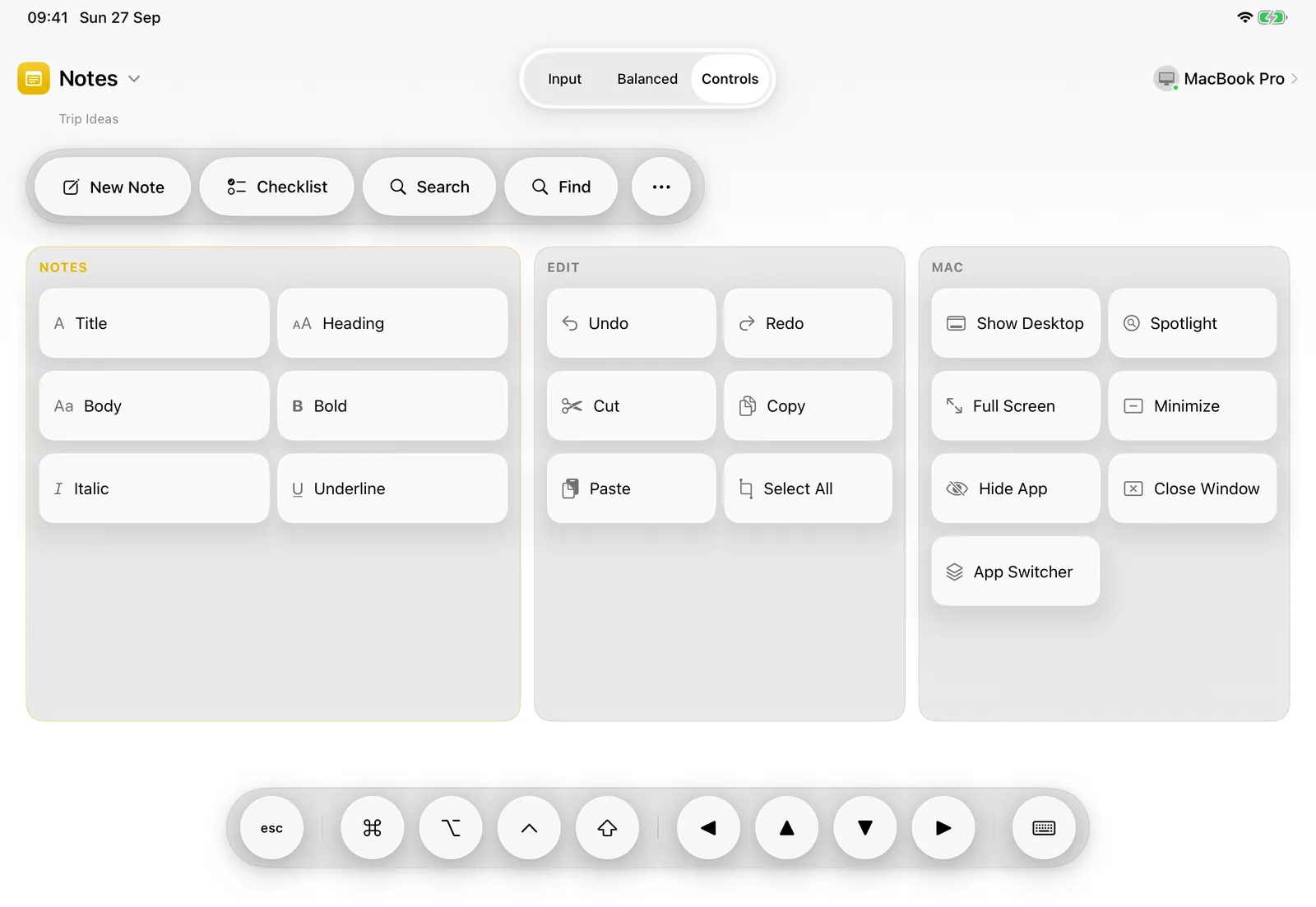
Switch apps on your Mac and ControlPad switches with you, automatically: tabs in Safari, replies in Mail, formatting in Notes, builds in Xcode. Nothing to set up.



More than 50 Mac apps, ready to go.
And every other app still gets the essentials: Undo, Copy, Paste, Find, Save and more.
-
Browsers
Safari, Chrome, Firefox, Arc, Edge, Brave, Vivaldi, Opera
-
Everyday
Finder, Mail, Messages, Notes, Reminders, Calendar, Preview, Photos, Maps
-
Work
Slack, Teams, Zoom, Discord, Outlook, Notion, Obsidian, Things, Linear
-
Documents
Pages, Numbers, Keynote, Word, Excel, PowerPoint
-
Media & creative
Music, Spotify, Podcasts, TV, QuickTime Player, VLC, Figma, Photoshop, Final Cut Pro, Logic Pro, GarageBand
-
Developers
Xcode, VS Code, Cursor, Windsurf, Zed, Sublime Text, Terminal, iTerm2, Warp, Ghostty, ChatGPT, Codex
As much trackpad as you want.
Switch layouts any time, from a full-screen trackpad to a complete control surface, on iPhone and iPad. Every layout adapts to the app you’re using.


Input. The whole screen is your trackpad, for when you’re away from the desk. Balanced. A trackpad and your app’s commands, side by side. Controls. Every command for your app at a glance, beside your own keyboard and mouse.
Ready in about a minute.
-
Get ControlPad for Mac
Download it and open it. macOS asks you to allow Accessibility access, and ControlPad walks you through it.
-
Open it on iPhone or iPad
With both on the same local network, your Mac appears by itself. Tap it.
-
Enter the code
Type the six-digit code shown on your Mac. From then on, they connect automatically.
Private by design.
-
Stays on your network
Your devices talk directly to each other over your local network. No cloud service in between.
-
Pair once with a code
Enter the code shown on your Mac. It’s never sent over the network, and every connection after that is encrypted.
-
No account, no tracking
No sign-up and no analytics. What you do stays between your devices.
Questions & answers
What do I need?
A Mac with macOS 26.5 or later, and an iPhone or iPad with iOS or iPadOS 26.5 or later, on the same local network.
Why does the Mac app need Accessibility access?
macOS requires it for any app that moves the pointer, clicks or types on your behalf, and asks you to approve it during setup. ControlPad uses it only to carry out what you do on your iPhone or iPad, and to know which app is in front and when you’re in a text field, so it can show the right controls and keyboard. It doesn’t read the contents of your documents or messages.
Why isn’t the Mac app on the Mac App Store?
ControlPad for Mac is distributed directly from controlpad.tech and is signed and notarized by Apple.
Does it work away from home?
No. ControlPad works only on your local network, where your iPhone or iPad and your Mac can see each other directly. Nothing is sent over the internet.
What about apps that aren’t on the list?
They work too. The trackpad and keyboard work everywhere, and every app gets common commands like Undo, Copy, Paste, Find and Save, plus Mac controls like Spotlight and Show Desktop.
Can it wake my Mac?
Yes, when your Mac is asleep (not shut down) on the same local network and Wake for network access is turned on in its settings. ControlPad asks it to wake and reconnects when it’s ready. Whether a Mac can wake this way depends on the Mac and the network; it’s most reliable over Ethernet.
Can I use more than one iPhone or iPad?
Yes. Pair as many as you like; one controls your Mac at a time.
Do I need an account?
No. There’s nothing to sign up for: install ControlPad on your Mac and your iPhone or iPad, pair them once, and you’re ready.

Your Mac. In your hands.
For Mac, iPhone and iPad.